Pay Zero Income Tax on Capital Gains: Save Tax by Reinvesting up to ₹10 Crore LTCG

Form 16 Part B in Excel: A Bulk Preparation for 50 Employees (FY 2025-26)

Table of Contents

Preparing Form 16 Part B for a large workforce demands efficiency and unwavering accuracy. When you manage a payroll of 50 employees or more, relying on manual calculations becomes impractical; consequently, you must master a robust, automated Excel utility. This process allows you to efficiently meet your compliance obligations for the Financial Year 2025-26 (Assessment Year 2026-27). Therefore, adopt a systematic approach to tackle this high-volume task. Furthermore, this active process ensures every employee receives their legally mandated certificate detailing their income, deductions, and tax liability. Phase I: Establishing the Master Data Hub

Successfully generating 50 individual certificates first requires constructing a single, authoritative master sheet in Excel. Specifically, this sheet acts as your central database, feeding critical information into the individual Form 16 Part B templates.

To begin, establish key columns in your master sheet. You must meticulously record the static employee details: name, designation, and Permanent Account Number (PAN). Next, you enter the dynamic financial data, which forms the core of the Part B computation. Importantly, this data includes the monthly breakup of Gross Salary, Perquisites, and Profits in lieu of Salary, as defined under Section 17(1), 17(2), and 17(3) of the Income Tax Act.

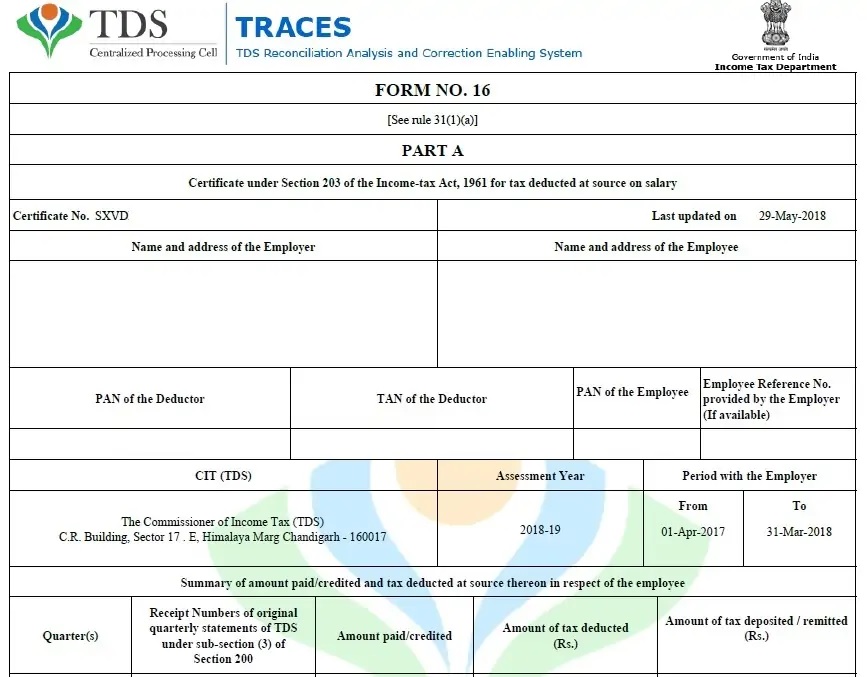
However, you cannot forget a critical component: the Tax Deducted at Source (TDS) and deposit details, which you must obtain from Part A of Form 16, which the TRACES portal generates. Generally, you download this consolidated Part A data; subsequently, you link the relevant columns back into your Part B master file. Indeed, precision at this initial stage prevents errors from propagating throughout the entire set of 50 forms. Phase II: Automating Exemptions and Allowances (Section 10)

Form 16 Part B mandates a detailed breakup of allowances and the total amount of exemptions claimed under various clauses of Section 10. Consequently, you must design your Excel template to calculate these exemptions automatically.

For instance, the most common exemption, House Rent Allowance (HRA), necessitates a complex calculation involving the actual HRA received, rent paid less 10% of salary, and 50% (or 40%) of the basic salary. Thus, you implement an IF and MIN function-based formula within your master sheet for each employee. Similarly, you apply specific calculations for other Section 10 allowances, such as Leave Travel Concession (LTC) or other prescribed allowances. Ultimately, the Excel sheet must compute the exact taxable portion of these components.

Furthermore, you must ensure the employee furnishes the necessary declarations and proofs to substantiate all claimed exemptions. In this way, you validate the data before the final calculation. Afterwards, the system automatically subtracts the total exempted amount from the gross salary to arrive at the ‘Amount of salary received from current employer’.Phase III: Integrating Statutory Deductions (Section 16)

The next step involves applying statutory deductions under Section 16, a comparatively straightforward process. Specifically, you allocate a column for each of the three sub-sections.

First, you claim the Standard Deduction under Section 16(ia). For FY 2025-26, this amount stands at ₹50,000 for those opting for the Old Regime. Conversely, for those in the New Regime (the default regime for this financial year), the standard deduction is also available. Therefore, the Excel formula must incorporate a logic check to apply the correct amount based on the employee’s chosen tax regime.

Second, you factor in the Entertainment Allowance under Section 16(ii). However, this deduction applies almost exclusively to government employees; therefore, you only consider it if applicable. Third, you deduct the Tax on Employment (Professional Tax) under Section 16(iii). As a result, the total of these three deductions reduces the net salary, giving you the ‘Income chargeable under the head Salaries’.Phase IV: Handling Other Income and Chapter VI A Deductions

Once you establish the salary income, you must account for any ‘Other Income’ the employee reports. Namely, this could include interest from fixed deposits or income from house property. Consequently, you create a separate input area in your master sheet where employees can declare this income using Form 12BB. Then, your utility incorporates this declared income to determine the employee’s total gross income.

Subsequently, you move on to the highly complex Section 80 deductions, which fall under Chapter VI A. For example, Section 80C covers investments like Public Provident Fund (PPF), Life Insurance Premium (LIC), and home loan principal repayment, with a maximum limit. Moreover, you include deductions for health insurance premiums (80D), interest on education loans (80E), and interest on electric vehicle loans (80EEB).

Crucially, your Excel model must validate all these claimed deductions against the prescribed limits for the FY 2025-26. First, of course, you gather the investment proof from all 50 employees. Second, you cross-verify each employee’s investment against the statutory caps. Third, you apply the correct logic to calculate the final deductible amount. Finally, subtracting the total Chapter VI A deductions from the gross income provides the total taxable income. Phase V: Final Tax Calculation and Form Generation

The ultimate phase involves the final tax computation and Form 16 Part B generation. First, your Excel logic must calculate the total tax liability on the ‘Total Taxable Income’ using the applicable slab rates for both the Old and New Tax Regimes (for FY 2025-26). Specifically, the sheet applies the lesser of the two regimes’ tax outgo, provided the employee made an active choice; otherwise, the New Regime automatically applies.

Next, you factor in any tax rebates, such as those under Section 87A, and finally add the Health and Education Cess. Furthermore, you adjust for any relief claimed under Section 89, particularly for salary arrears. At this point, the calculated tax matches the TDS deducted and reported in Part A.

Then, you use mail merge or a similar bulk-generation function within your Excel utility. Therefore, the master sheet information flows seamlessly into 50 separate, correctly formatted Part B annexures. Before concluding, you perform a final reconciliation: you compare the total tax liability with the total tax deposited for each employee. Only after the figures match, you sign and issue the 50 certificates.

To summarise, preparing Form 16 Part B for 50 employees in Excel is a rigorous yet manageable process. Ultimately, active, systematic data management and automated logic guarantee your compliance and deliver accurate tax certificates to your team. Indeed, a well-structured Excel utility transforms this annual compliance challenge into a streamlined operation

Download Automatic Form 16 Part A and B in Excel for Salaried Employees for FY 2025-26 & AY 2026-27

Download Master of Form 16 Part B in Excel: A Bulk Preparation Guide for 50 Employees (FY 2025-26)

Download Master of Form 16 Part B in Excel: A Bulk Preparation Guide for 50 Employees (FY 2025-26)

Feature of this Excel Utility:-

  1. Firstly, the Excel tool automatically prepares Form 16 Part B for up to 50 employees in one go, saving valuable time.
  2. Secondly, it accurately captures salary details, thereby reducing manual entry errors.
  3. Moreover, the sheet automatically calculates taxable income under the latest FY 2025-26 rules.
  4. Additionally, it applies the standard deduction correctly and thus ensures compliance.
  5. Furthermore, the software auto-computes deductions under Chapter VI-A and hence avoids calculation mistakes.
  6. Meanwhile, you can update employee data quickly without breaking formulas.
  7. As a result, bulk preparation becomes smooth, fast, and stress-free.
  8. Likewise, tax calculation updates instantly whenever you revise salary figures.
  9. Consequently, you generate accurate Form 16 Part B without repeated checks.
  10. In addition, the Excel format remains user-friendly and easy to understand.
  11. Similarly, it supports both Government and Non-Government employee data.
  12. On the other hand, it eliminates dependency on costly software tools.
  13. However, it still maintains professional accuracy and structured output.
  14. Therefore, employers can confidently issue Form 16 Part B on time.
  15. In fact, the sheet validates figures logically to prevent mismatches.
  16. Not only that, it also allows easy printing and PDF conversion.
  17. At the same time, you can prepare individual or bulk Form 16 Part B files.
  18. Eventually, this automation improves payroll efficiency significantly.
  19. Above all, the Excel tool follows income-tax compliance for FY 2025-26.
  20. Finally, it simplifies bulk Form 16 Part B preparation while ensuring accuracy, speed, and peace of mind.

Related Posts

Form 10E
Arrears Relief Calculator U/s 89(1)
admin

Calculating income tax often feels like solving a complicated puzzle, doesn’t it? You gather salary slips, deductions, exemptions, and slabs, yet confusion remains. However, things do not have to be this stressful anymore. An Automatic Income Tax Calculator in Excel for Govt & Non-Govt Employees (FY 2025-26) works like a smart assistant that does the heavy lifting for you. In fact, it calculates tax automatically, accurately, and instantly. Moreover, it saves time, reduces errors, and gives you peace of mind. So, whether you are a government employee, a private-sector professional, or even a pensioner, this article will guide you step by step. Additionally, it will help you understand why Auto Calculate Income Tax Preparation Software in Excel is becoming the preferred choice for the general public across India. Table of Contents Sr# Headings 1 Introduction to Automatic Income Tax Calculator 2 Why Income Tax Calculation Feels Complicated 3 What Is Auto Calculate Income Tax Preparation Software in Excel 4 Who Can Use This Excel Tax Calculator 5 Key Features of Automatic Income Tax Calculator 6 Benefits for Government Employees 7 Benefits for Non-Government Employees 8 Old Tax Regime vs New Tax Regime Comparison 9 Deductions and Exemptions Covered 10 Step-by-Step: How the Excel Calculator Works 11 Accuracy, Transparency, and Error Reduction 12 Why Excel Is Better Than Online Calculators 13 Data Security and Offline Advantage 14 How This Tool Saves Time and Money 15 Conclusion and Final Thoughts 1. Introduction to Automatic Income Tax Calculator To begin with, an automatic income tax calculator in Excel is designed to simplify tax computation. Instead of manually applying slabs and formulas, you simply enter your income details. Consequently, the calculator does everything else. Moreover, it updates totals instantly, which means no more guesswork. Therefore, for FY 2025-26, this tool becomes extremely useful as tax rules continue to evolve. 2. Why Income Tax Calculation Feels Complicated Frankly speaking, income tax feels complicated because it involves multiple variables. Firstly, there are different tax slabs. Secondly, deductions change from person to person. Thirdly, exemptions vary based on salary structure. However, when you use Auto Calculate Income Tax Preparation Software in Excel, these complexities fade away. In other words, the software acts like a GPS that guides you smoothly through a confusing route. 3. What Is Auto Calculate Income Tax Preparation Software in Excel Simply put, this software is an Excel-based calculator with built-in formulas. Not only does it calculate tax automatically, but it also considers deductions, rebates, cess, and surcharge. Furthermore, it allows you to compare the old and new tax regimes side by side. As a result, you can choose the most beneficial option without stress. 4. Who Can Use This Excel Tax Calculator Interestingly, this tool is not limited to one group. Government employees, private employees, PSU staff, teachers, bank employees, and even consultants can use it. Additionally, pensioners and senior citizens can benefit as well. Therefore, it truly serves the general public. 5. Key Features of Automatic Income Tax Calculator Some standout features include: Automatic tax calculation Built-in tax slabs for FY 2025-26 Old vs New regime comparison Support for deductions under Chapter VI-A Simple, user-friendly interface Moreover, these features work together seamlessly. Hence, even beginners can use the calculator confidently. 6. Benefits for Government Employees For government employees, salary structures include DA, HRA, and other allowances. Therefore, tax calculation becomes tricky. However, this Excel calculator automatically adjusts these components. Additionally, it considers standard deduction and applicable exemptions. As a result, government employees save time and avoid errors. 7. Benefits for Non-Government Employees Similarly, non-government employees often deal with performance bonuses, incentives, and variable pay. Consequently, manual calculation leads to mistakes. With the Auto Calculate Income Tax Preparation Software in Excel, everything is handled logically. Furthermore, you can revise figures anytime, and results update instantly. 8. Old Tax Regime vs New Tax Regime Comparison One of the biggest advantages is regime comparison. On the one hand, the old regime offers deductions. On the other hand, the new regime provides lower slab rates. Therefore, the Excel calculator compares both automatically. Eventually, you clearly see which regime saves more tax. 9. Deductions and Exemptions Covered The calculator supports major deductions such as: Section 80C Section 80D Section 80CCD Standard Deduction HRA Exemption Moreover, it applies limits automatically. Thus, compliance becomes effortless. 10. Step-by-Step: How the Excel Calculator Works Firstly, you enter basic salary details. Secondly, you input allowances and deductions. Thirdly, the software calculates taxable income. Finally, it computes the tax payable. Meanwhile, every step updates in real time. Hence, you always stay informed. 11. Accuracy, Transparency, and Error Reduction Accuracy matters when money is involved. Therefore, this calculator uses predefined formulas to minimize errors. Moreover, transparency improves because you can see every calculation. Consequently, trust increases. 12. Why Excel Is Better Than Online Calculators Unlike online tools, Excel works offline. Additionally, there are no ads or distractions. Furthermore, you maintain full control over your data. Hence, Excel-based calculators are reliable and secure. 13. Data Security and Offline Advantage Since the file stays on your computer, your data remains private. Moreover, there is no need for internet access. As a result, sensitive financial information stays protected. 14. How This Tool Saves Time and Money Time is money, right? Because calculations are automatic, you save hours. Moreover, you avoid professional fees for basic tax estimation. Therefore, this tool pays for itself quickly. 15. Conclusion and Final Thoughts To sum up, Download Automatic Income Tax Calculator in Excel for Govt & Non-Govt Employees (FY 2025-26) is a smart move. It simplifies tax calculation, improves accuracy, and empowers you to make informed decisions. Ultimately, Auto Calculate Income Tax Preparation Software in Excel works like a financial compass, always pointing you in the right direction. Frequently Asked Questions (FAQs) Can government and private employees both use this Excel tax calculator? Yes, absolutely. The calculator is designed for both government and non-government employees. Does this calculator support FY 2025-26 tax slabs? Yes, it includes updated slabs and rules applicable for FY 2025-26. Can I compare old and new tax regimes using this software? Yes, the calculator automatically compares both regimes and shows tax savings. Is Excel-based tax calculation accurate? Yes, because predefined formulas reduce manual errors significantly. Is my data safe when using this Excel income tax calculator? Yes, since it works offline, your financial data remains fully secure. Download Automatic Income Tax Calculator in Excel for Govt & Non-Govt Employees (FY 2025-26) Key Features of this Excel Utility are:- Firstly, automatic tax calculation: The Excel tool instantly calculates income tax as soon as you enter salary details, thereby eliminating manual effort and confusion. Secondly, updated tax slabs for FY 2025-26: It automatically applies the latest income tax slabs, hence ensuring accuracy and compliance with current rules. Moreover, old vs new tax regime comparison: The calculator compares both regimes side by side, so you can easily choose the most tax-saving option. Additionally, support for Govt & Non-Govt employees: Whether you work in the government sector or the private sector, the calculator adjusts calculations accordingly. Furthermore, built-in deductions and exemptions: It covers major sections like 80C, 80D, 80CCD, HRA, and standard deduction, therefore reducing errors. As a result, real-time auto updates: Whenever you change any value, the tax payable updates instantly, thus saving time. Likewise, user-friendly Excel format: Since most people are familiar with Excel, the software feels simple, clear, and easy to operate. In addition, error-free formula-based working: Predefined formulas minimise calculation mistakes, consequently improving reliability. Meanwhile, offline usage advantage: You can use the calculator without internet access, hence keeping your data secure. Finally, time-saving and cost-effective: Because everything is automated, you save hours of work and avoid unnecessary professional fees.

Calculating income tax often feels like solving a complicated puzzle, doesn’t it? You gather salary slips, deductions, exemptions, and slabs, yet confusion remains. However, things

Read More »
error: Content is protected !!