
Preparing tax documents for employees can feel like climbing a mountain without a rope. Yet, with the right tool, the journey becomes smooth. When you use Form 16 Part A and B in Excel, you can download and prepare 50 employees’ forms at once. It saves time, avoids errors, and keeps everything organised. Wouldn’t you love to finish paperwork faster and spend more time on what matters? This simple guide shows how to do it step-by-step in a friendly way.
Table of Contents
| Sr# | Headings |
| 1 | Introduction to Form 16 Part A and B |
| 2 | Why Form 16 Matters for Employers |
| 3 | Understanding Part A and Part B |
| 4 | Benefits of Using Excel Format |
| 5 | Downloading the Excel Tool |
| 6 | Preparing 50 Forms at Once |
| 7 | Required Employee Data |
| 8 | Data Validation Tips |
| 9 | Calculating TDS Automatically |
| 10 | Generating PDF for Part A and B |
| 11 | Common Errors and Fixes |
| 12 | Secure Filing and Recordkeeping |
| 13 | Useful Transition Tips |
| 14 | Conclusion |
| 15 | FAQs |
1. Introduction to Form 16 Part A and B
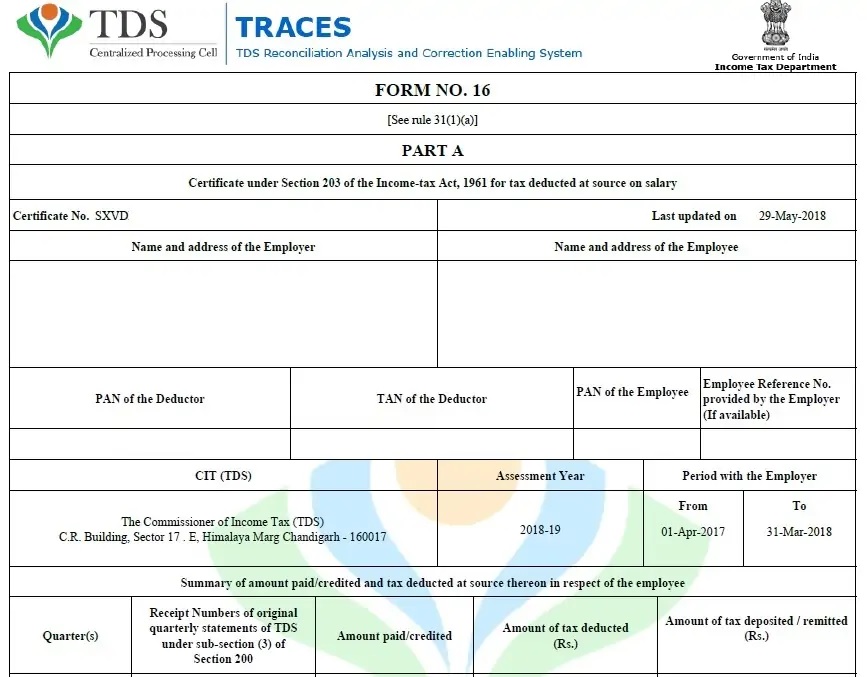
First, employers issue Form 16 as a salary TDS certificate. Second, employees use it to file income tax returns correctly. Also, employers issue it every financial year, and they demonstrate compliance through the document. Moreover, Part A shows tax deducted and deposited, while Part B shows salary details and deductions. Additionally, both parts together provide a complete view of tax information. Therefore, the combined form shows the employee’s annual tax summary. Consequently, employees rely on Form 16 to file returns accurately and confidently.
2. Why Form 16 Matters for Employers
First, Form 16 builds trust between employers and employees. Also, it shows that you act responsibly as an employer. Moreover, it helps employees understand their taxes clearly. Additionally, it ensures complete compliance with tax laws. Furthermore, it prevents mistakes that may create penalties later. Therefore, you protect your organization from legal issues. Besides, employees appreciate transparency. Consequently, Form 16 makes tax filing smooth for everyone. Finally, issuing Form 16 on time improves your credibility.
3. Understanding Part A and Part B
Part A
First, Part A includes:
- TAN of the employer
- PAN of the employee
- Summary of TDS
- Quarterly filing details
Part B
Second, Part B includes:
- Salary structure
- Allowances
- Deductions under 80C, 80D, etc.
- Tax computation
Also, both parts work together. Moreover, employees require both parts for filing returns. Therefore, employers must generate each part accurately. Consequently, employees get full tax clarity.
4. Benefits of Using Excel Format
First, using Form 16 Part A and B in Excel feels like shifting from hand-washing clothes to using a washing machine. Also, it speeds up the work significantly. Moreover, it prevents calculation errors effortlessly. Additionally, Excel is easy to edit while managing employee data. Furthermore, you can store files digitally for long-term recordkeeping. Besides, the format is reusable every year. Therefore, you save time with every new financial year. Consequently, you reduce stress and finish work faster.
5. Downloading the Excel Tool
First, follow the steps to download the tool:
- Download the tool from the below link
- Open the Excel file
- Enable macros if required
- Save a backup copy
Also, check the sheet tabs after opening. Moreover, you will see data entry sheets, calculation sheets, and output files. Additionally, review the instructions once. Therefore, you understand the complete workflow. Consequently, you will prepare forms correctly.
6. Preparing 50 Forms at Once
First, the tool lets you enter data for 50 employees together. Second, you click once to prepare all the Form 16 documents. Also, you save time, because you don’t prepare forms individually. Moreover, the tool automates every calculation. Finally, follow the steps:
- Open the Excel file
- Fill all employee details
- Enter salary figures
- Add deductions
- Click generate button
- Save each Form 16
Therefore, you avoid manual work. Consequently, you complete all forms quickly. Meanwhile, employees receive their tax records on time.
7. Required Employee Data
First, gather these details:
- Name
- PAN
- Address
- Salary components
- TDS details
- Deduction proofs
Also, collect all documents in advance. Moreover, having complete data ensures smooth entry. Additionally, correct data prevents calculation errors. Therefore, you prepare accurate Form 16 statements. Consequently, employees trust their tax data.
8. Data Validation Tips
First, check every data point clearly:
- Cross-check PAN accuracy
- Match salary slips
- Verify deduction limits
- Use formula checking
- Remove extra spaces
Also, proper validation prevents errors. Moreover, it ensures correct tax values. Additionally, employees receive error-free certificates. Therefore, your Form 16 remains accurate. Consequently, you avoid rework later.
9. Calculating TDS Automatically
Excel calculates TDS automatically using formulas. Also, the tool eliminates manual math. Moreover, the settings update the tax slabs automatically if programmed. Additionally, the tool shows any tax relief benefits. Therefore, you get accurate tax computation instantly. Consequently, you save time and reduce effort.
10. Generating PDF for Part A and Part B
First, generate the PDFs after finishing calculations:
- Export Part A
- Export Part B
- Merge if required
- Send files to employees
Also, secure every file using a password. Moreover, send the documents through email or portal. Additionally, keep a backup copy for records. Finally, maintain safe access control. Therefore, you protect employee information.
11. Common Errors and Fixes
First, common mistakes include:
- Incorrect PAN
- Missing deduction details
- Negative income errors
- Wrong tax slab
Also, you can fix errors using the validation sheet. Moreover, review employee data once again. Additionally, cross-check final output before sharing. Therefore, quality control prevents issues. Consequently, employees get accurate forms.
12. Secure Filing and Recordkeeping
First, keep all copies in a secure folder. Also, store files in cloud storage for backup. Moreover, protect documents using passwords. Additionally, hand over Form 16 early to employees. Therefore, they file returns on time. Consequently, your office operates smoothly. Finally, a structured filing method supports compliance.
13. Conclusion
In conclusion, preparing Form 16 Part A and B in Excel for 50 employees may look complex at first. However, the right tool makes the process easy. Moreover, the Excel tool allows you to manage bulk data efficiently. Additionally, you save time, reduce stress, and deliver accurate forms. Therefore, you take a smart step for FY 2025-26. Consequently, once you use it, you will avoid manual preparation forever.
14. FAQs
- What are Form 16 Part A and B?
Form 16 is a TDS certificate for employees. Part A shows tax deducted, and Part B shows salary details. - Can I generate 50 forms at once?
Yes. Using Form 16 Part A and B in Excel, you can generate 50 forms together. - Is Excel better than manual preparation?
Yes. It saves time, avoids calculation errors, and automates tax computation. - Do I need TAN for issuing Form 16?
Yes. TAN is mandatory for tax deduction and issuing Form 16. - Can employees use Form 16 for filing returns?
Yes. They use Form 16 to file accurate income tax returns.
Download the Automatic Income Tax Master of Form 16 Part A and B in Excel, which can prepare at a time 50 Employees Form 16 Part A and B for the FY 2023-24
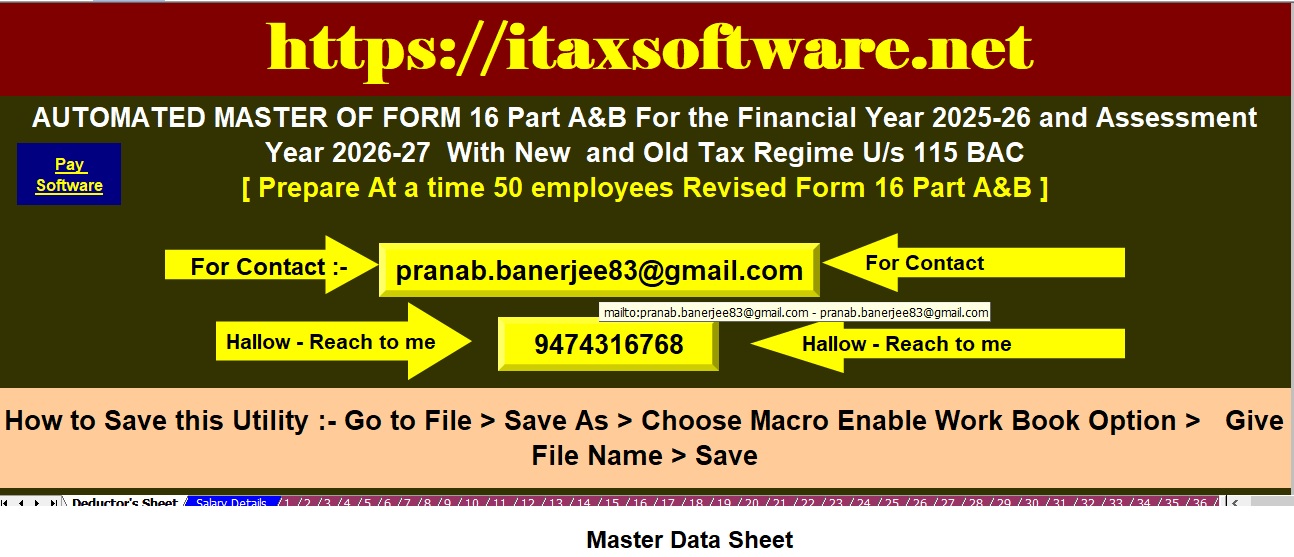


- First, the Excel Utility prepares 50 employees’ Form 16, including both Part A and Part B, for FY 2025-26 at one time.
- Also, the Excel Utility calculates your income tax liability as per the income tax slabs, under both the old and new tax regimes.
- Additionally, the Excel Utility provides a unique salary structure for individuals based on Budget 2025.
- Moreover, the Excel Utility includes all amended income tax sections updated in Budget 2025, under the old and new tax regimes.
- Further, the Excel Utility prevents double or duplicate PAN entries for each employee; therefore, you avoid mistakes in name and PAN data.
- Meanwhile, you can print Form 16, for both Part A and Part B, on A4 paper size.
- Consequently, the Excel Utility converts amounts into words automatically without any Excel formula.
- However, both government and non-government organisations can use this Excel Utility easily.
- Finally, since the Excel Utility is simply an Excel file, you can download it and start entering data in the input sheet, and it prepares all 50 employees’ Form 16 Part A & B instantly.
- Also, you can prepare and save employee data on your system, and it works with MS Office 2003, 2007, 2010, and 2011 smoothly.